


Intro
This is a complete guide to help you achieve compliance with the CIS AWS Foundations Benchmark. By following this guide, you can launch infrastructure that is compliant with the Benchmark recommendations, and you’ll be set to retain a compliant state over time because all of the infrastructure is defined as code. This guide targets version 1.3.0 of the Benchmark.
|
Note
|
Previously, we supported version 1.2.0 of the Benchmark. If you are looking to upgrade from v1.2.0 to v1.3.0, please follow the upgrade guide instead. |
What is the CIS AWS Foundations Benchmark?
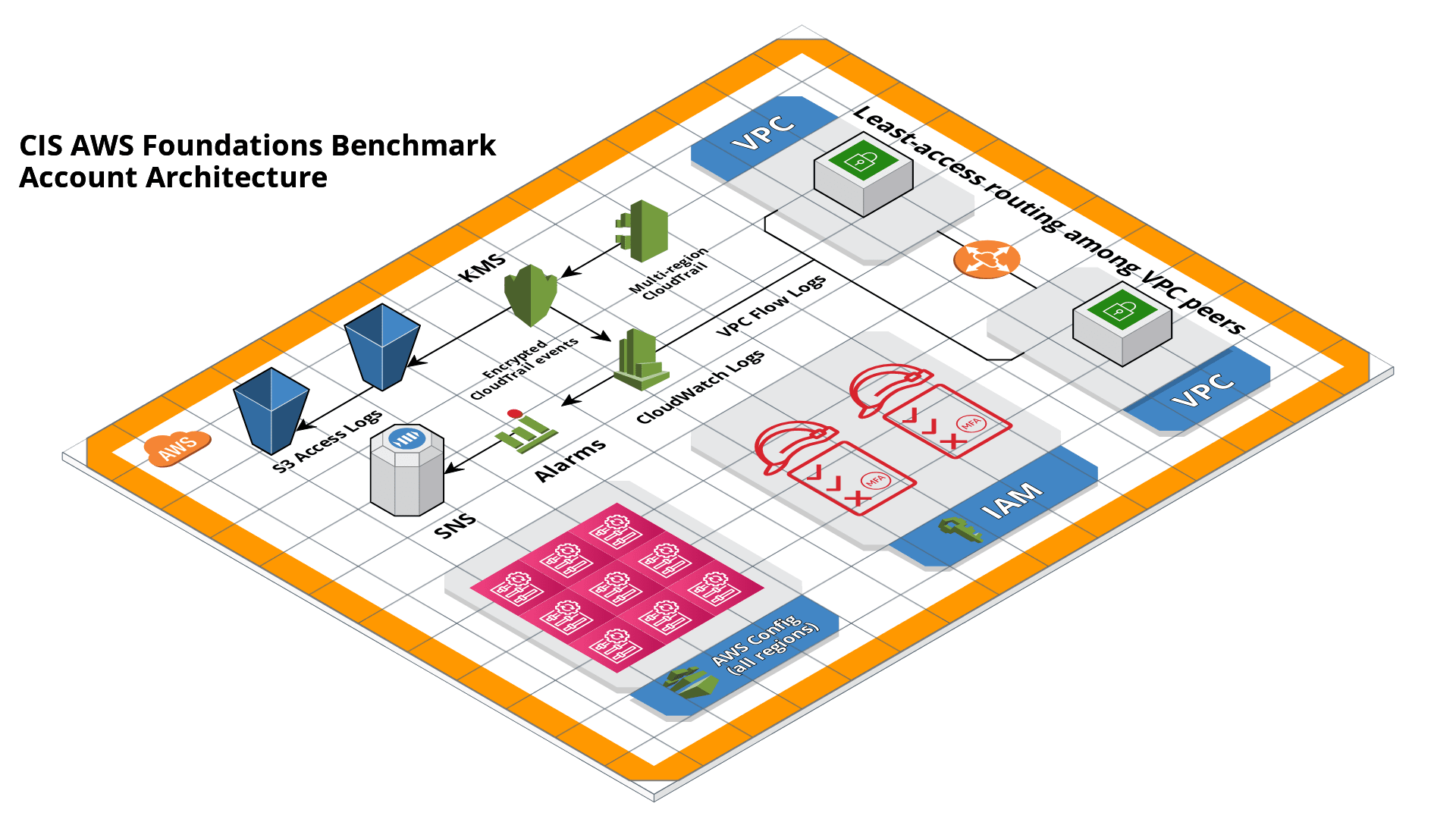
The CIS Benchmarks are objective, consensus-driven configuration guidelines developed by security experts to help organizations improve their security posture. The AWS Foundations Benchmark is a set of configuration best practices for hardening AWS accounts to establish a secure foundation for running workloads on AWS. It also provides ongoing monitoring to ensure that the account remains secure.
What you’ll learn in this guide
This guide consists of five main sections:
- Core concepts
-
An overview of the AWS Foundations Benchmark, including its control sections and structure.
- Production-grade design
-
How to use infrastructure as code to achieve compliance with minimal redundancy and maximum flexibility.
- Deployment walkthrough
-
A step-by-step guide to achieving compliance using the Gruntwork Infrastructure as Code Library and the Gruntwork CIS AWS Foundations Benchmark wrapper modules.
- Next steps
-
How to measure and maintain compliance.
- Traceability matrix
-
A reference table that maps each Benchmark recommendation to the corresponding section in the deployment walkthrough.
Feel free to read the guide from start to finish or skip around to whatever part interests you!
Core concepts
The CIS AWS Foundations Benchmark is organized into the following sections:
-
Identity and Access Management
-
Storage
-
Logging
-
Monitoring
-
Networking
There are multiple recommendations within each section. Note the use of the term recommendation as opposed to control or requirement. This reinforces the point that CIS is a self-imposed, best-practices standard, as opposed to compulsory or regulated and centralized standards such as the PCI DSS for the payment card industry or HIPAA for covered health care entities.
Assessment Status
Each recommendation is classified as either Automated or Manual. Automated recommendations indicate that the check for the recommendation may be accessed programmatically (e.g., an API exists to validate or enable the recommendation). Manual recommendations must be checked and remediated manually.
Profiles
The Benchmark defines two profile levels. Level one recommendations are easier to implement, incur less overhead, but still substantially improve security. Level two recommendations are meant for highly sensitive environments with a lower risk appetite. They may be more difficult to implement and/or cause more overhead in day-to-day usage.
CIS Controls
Each recommendation is also linked to a corresponding CIS Control. The controls are distinct from the Benchmark. They’re described by CIS as "a prioritized set of actions that collectively form a defense-in-depth set of best practices that mitigate the most common attacks against systems and networks." Organizations seeking to implement a comprehensive security program or framework can use the controls to measure their progress and prioritize security efforts. The Foundations Benchmark is just one of several guidelines that can help reach the bar set by the CIS Controls. Refer to the Benchmark document directly to view how the recommendations map to controls.
Recommendation sections
Identity and Access Management
Number of recommendations: 22
The recommendations in this section involve the use of identity, accounts, authentication, and authorization. On AWS, most identity and access control related concerns are managed using the eponymous IAM service. Hence, most (but not all) of the recommendations in this section discuss particular IAM configurations, such as the configuration of the password policy, the use of various groups and roles, and the configuration of multi-factor authentication (MFA) devices.
Storage
Number of recommendations: 3
Logging
Number of recommendations: 11
AWS has a variety of logging, monitoring, and auditing features, and the Benchmark has recommendations for several of them:
-
AWS CloudTrail tracks user activity and API usage
-
AWS Config records and evaluates resource configurations
-
VPC Flow Logs capture network traffic information in VPCs
AWS has several other logging related features that are not covered directly by the Benchmark. For example, the primary log ingestion and query service, Amazon CloudWatch Logs, is integrated with many other AWS services. The Benchmark does not contain any recommendations specifically for CloudWatch Logs, though many recommendations do make mention of it.
Monitoring
Number of recommendations: 15
Monitoring is an overloaded term in the industry. In the context of the AWS Foundations Benchmark, the monitoring section is exclusively about monitoring for specific API calls using the CloudTrail service paired with CloudWatch Logs filter metrics. Each recommendation in this section spells out a specific filter and an associated alarm.
Networking
Number of recommendations: 4
The Benchmark is uncomfortably light on networking, considering its central role in the security of any
distributed system. The recommendations merely limit traffic from the zero network (0.0.0.0/0) and
suggest limiting routing for VPC peering connections based on the principle of least-privilege.
Production-grade design
In Core concepts we discussed the basics of the AWS Foundations Benchmark. Although it’s possible to achieve
compliance with the Benchmark by manually configuring each setting in the web console or entering the CLI commands, we
strongly discourage this approach. It precludes
the
myriad benefits of using code to manage infrastructure.
Instead, we advise using Terraform (or similar tools, such as CloudFormation or Pulumi) to configure cloud resources programmatically. This section will cover the Terraform resources you can use to implement each of the recommendations. We assume that you’re familiar with the basics of Terraform. If you aren’t, read our Introduction to Terraform blog post, or pick up the 2nd edition of Terraform Up & Running.
Identity and Access Management
The first section of the Benchmark centers on Identity and Access Management, including the following:
-
Avoiding usage of the "root" account
-
Requiring MFA for IAM users
-
Setting a specific password policy
-
Disabling administrative permissions
-
Limiting the use of API access keys
-
Using IAM roles
-
Removing expired SSL/TLS certificates
-
Enabling IAM Access Analyzer
In the subsequent sections, we’ll review the recommendations and discuss how to implement them using Terraform resources and data sources.
Configure authentication
One of main areas of concern in the IAM section relates to authentication. The Benchmark has recommendations for IAM users and the root user account, password policy, and multi-factor authentication. There is more than one way to authenticate to AWS, and the method you choose determines how to implement these recommendations in your code.
Federated authentication using SAML
Perhaps the most robust and secure method for authenticating to AWS is to use federated SAML authentication with an identity provider (IdP) like Okta, Google, or Active Directory. In this configuration, users authenticate to the IdP and assume IAM roles to obtain permissions in AWS. All user management is handled in the IdP, where you can assign roles to users according to their needs. If you use this approach, several of the Benchmark recommendations, including recommendations 1.10, 1.15, and 1.11, are not applicable (assuming you have no IAM users at all).
Configuring SAML is a multi-step process that is outside the scope of this guide. Familiarize yourself with the
process by reviewing the AWS
documentation on the matter. You can use the
aws_iam_saml_provider and
aws_iam_policy_document Terraform
resources to manage your SAML provider via code.
IAM user authentication
Another option is to authenticate using IAM users. The accounts are created and managed directly in AWS as opposed to a third-party provider. IAM users log in to AWS with a password and an optional MFA device. IAM users are easier to get started with than SAML, and they’re also free to use. However, to avoid unauthorized access, it’s crucial to configure the IAM user settings securely. IAM users may be more suitable for smaller environments with only a few users.
A few tips on creating IAM users with Terraform:
-
To create IAM users, use the
aws_iam_userandaws_iam_user_login_profileresources. -
As instructed by recommendation 1.11, do not create API access keys for new users automatically. The intent is that users should create them on their own if and when needed.
-
To stay compliant with recommendation 1.15, be sure to never attach IAM policies directly to IAM users. Instead, create IAM groups, attach policies to those groups, and add the user to groups using the
aws_iam_user_group_membership. This helps to avoid scenarios where auditing the exact permissions of IAM users becomes difficult and unmaintainable.
Consider the following example which creates a user with access to AWS Support:
resource "aws_iam_user" "support_user" {
  name = "support"
}

resource "aws_iam_group" "example_group" {
  name = "support-group"
}

resource "aws_iam_group_policy_attachment" "support_group_attach" {
  group      = aws_iam_group.example_group.name
  policy_arn = "arn:aws:iam::aws:policy/AWSSupportAccess"
}

resource "aws_iam_user_group_membership" "example" {
  user = aws_iam_user.example_user.name
  groups = [aws_iam_group.example_group.name]
}
This code creates an IAM user called support, adds them to a new group called support-group, and attaches the
AWSSupportAccess managed policy to the group. It demonstrates how to meet a few of the Benchmark recommendations:
-
The user is created without an API access key (recommendation 1.11). Access keys should only be created by the user later.
-
The policy is attached to an IAM group, not directly to the IAM user (recommendation 1.15).
-
Recommendation 1.17 specifically requires that the Support policy be used. You should attach it to a group, as shown here.
Do not use full administrator privileges
Recommendation 1.16 states that no IAM policies with full administrator privileges be assigned. However, some administrator access is needed to maintain the account on an ongoing basis, and use of the root account is also prohibited. What to do?
One approach is to create an IAM policy with full permissions to IAM and nothing else. Attach the policy to a group, and give access only to trusted users. This allows effective administrator access without an explicit administrator policy. For example, you could use the following Terraform code to create such a policy:
data "aws_iam_policy_document" "iam_admin" {
  statement {
    sid = "iamAdmin"
    actions = [
      "iam:*",
    ]
    resources = ["*"]
    effect = "Allow"
  }
}
You can then attach that policy to a group:
resource "aws_iam_policy" "iam_admin" {
  name   = "iam_admin"
  path   = "/"
  policy = data.aws_iam_policy_document.iam_admin.json
}

resource "aws_iam_group" "iam_admin" {
  name = "iam-admins"
}

resource "aws_iam_group_policy_attachment" "iam_admin_group_attach" {
  group      = aws_iam_group.iam_admin.name
  policy_arn = aws_iam_policy.iam_admin.arn
}
In this example, any IAM user that is a member of the iam-admins group will have has permissions to access all
functionality in the IAM service, make them an effective administrator of the account.
Enabling multi-factor authentication for IAM users
Recommendation 1.10, which requires all IAM users to have MFA enabled, seems straightforward on the surface, but in AWS, there’s no way to explicitly require MFA for log in. Instead, you can make sure that all groups and roles have a conditional IAM policy attached that explicitly denies all actions unless MFA is enabled. This way, whenever a user logs in without MFA, all services will show a permission denied error if the user didn’t use MFA.
The
AWS
documentation has an example of this policy. Create the policy with Terraform, and attach it to every group
you create - including the iam-admins and support groups we created above. Here’s an example:
data "aws_iam_policy_document" "require_mfa_policy" {
  statement {
    sid = "AllowViewAccountInfo"
    effect = "Allow"
    actions = ["iam:ListVirtualMFADevices"]
    resources = ["*"]
  }

  statement {
    sid = "AllowManageOwnVirtualMFADevice"
    effect = "Allow"
    actions = [
      "iam:CreateVirtualMFADevice",
      "iam:DeleteVirtualMFADevice"
    ]
    resources = [
      "arn:aws:iam::${var.aws_account_id}:mfa/$${aws:username}",
    ]
  }

  statement {
    sid = "AllowManageOwnUserMFA"
    effect = "Allow"
    actions = [
      "iam:DeactivateMFADevice",
      "iam:EnableMFADevice",
      "iam:GetUser",
      "iam:ListMFADevices",
      "iam:ResyncMFADevice"
    ]
    resources = [
      "arn:aws:iam::${var.aws_account_id}:user/$${aws:username}",
      "arn:aws:iam::${var.aws_account_id}:mfa/$${aws:username}"
    ]
  }

  statement {
    sid = "DenyAllExceptListedIfNoMFA"
    effect = "Deny"
    not_actions = [
      "iam:CreateVirtualMFADevice",
      "iam:EnableMFADevice",
      "iam:GetUser",
      "iam:ListMFADevices",
      "iam:ListVirtualMFADevices",
      "iam:ResyncMFADevice",
      "sts:GetSessionToken"
    ]
    resources = ["*"]
    condition {
      test     = "Bool"
      variable = "aws:MultiFactorAuthPresent"
      values   = ["false"]
    }
  }
}

resource "aws_iam_group" "support" {
  name  = "support"
}


resource "aws_iam_group_policy" "require_mfa_for_support" {
  name   = "RequireMFA"
  group  = aws_iam_group.support.name
  policy = data.aws_iam_policy_document.require_mfa_policy
}
We’ve created an IAM policy that denies all access accept the necessary permissions to set up an MFA device, then we
attached the policy to the support group. If a user that is a member of the support group logs in without MFA, they
won’t have access to any services, even if the support group or the user had other policies attached. They will have
enough permissions to set up an MFA device, and after doing so, they can log in and will have any permissions granted to
them by other IAM policies.
Attach a policy like this one to every group in your account.
Password policy
The IAM password policy is perhaps the most straightforward and explicit set of recommendations (1.8-1.9 and 1.12) in the entire
Benchmark. You can invoke the
Terraform aws_iam_account_password_policy resource to implement the recommended policy.
For example:
resource "aws_iam_account_password_policy" "aws_foundations_benchmark_policy" {
  minimum_password_length        = 14
  allow_users_to_change_password = true
  hard_expiry                    = true
  max_password_age               = 90
  password_reuse_prevention      = 24
}
Cleanup Expired SSL/TLS certificates
The CIS AWS v1.3 recommendations require that all expired SSL/TLS certificates stored in AWS IAM are automatically removed
(see 1.19). Unfortunately removing expired certificates via AWS Management Console is not currently supported so we must remove
then using the AWS API. To view the current certificates stored in IAM, use the AWS CLI and execute the list-server-certificates
command:
aws iam list-server-certificatesThe command output should return an array that contains all of the SSL/TLS certificates currently stored in IAM and their metadata:
{
	"ServerCertificateMetadataList": [{
		"ServerCertificateId": "EHDGFRW7EJFYTE88D",
		"ServerCertificateName": "MyServerCertificate",
		"Expiration": "2020-07-10T23:59:59Z",
		"Path": "/",
		"Arn": "arn:aws:iam::012345678910:server-
		certificate / MySSLCertificate ",
		"UploadDate": "2018-06-10T11:56:08Z"
	}]
}
The Expiration attribute contains the expiration date for each SSL/TLS certificate which you can use to determine
if it should be removed. To remove the certificate use the delete-server-certificate command, making sure to
substitute <CERTIFICATE_NAME> with the ServerCertificateId attribute from the previous command:
aws iam delete-server-certificate --server-certificate-name <CERTIFICATE_NAME>To automate this process you might decide to implement a Lambda function that runs on a regular schedule and removes all expired SSL/TLS certificates. Check out the Automatically remove expired SSL/TLS certificates from IAM section of the deployment walkthrough to see how to deploy a ready-made module that can be deployed in each of your AWS accounts.
IAM Access Analyzer
As of version 1.3.0, the CIS recommendations stipulate that the AWS IAM Access Analyzer service is enabled across all active regions in a given AWS Account or Organization.
To achieve this compliance requirement, enable the IAM Access Analyzer service for every AWS region you have enabled in
every one of your AWS accounts. Alternatively, you could make use of the iam-access-analyzer-multi-region module
available in the Gruntwork Service Catalog, as described in the Steps to enable IAM Access Analyzer for all enabled AWS regions section of the
deployment walkthrough.
Once enabled, it will scan only within the boundaries of the AWS Account or Organization it has access to. Only specific resources are analyzed and included in the results - e.g. S3 buckets, SQS, etc. (For the full list of resources supported, please visit the relevant AWS docs). This lets you identify unintended access to these resources and data by external entities.
The findings from the IAM Access Analyzer can be found in the AWS web console, and can be archived or resolved. Please visit the AWS guidance on how to do so.
Manual steps
A few of the recommendations in the IAM section are not achievable via API and require a one-time manual configuration. Perform the steps in this section manually.
Enable MFA for the root account
Securing the "root" user, or the first user that is created when you set up an AWS account, is one of the first actions you should take in any new account. Unfortunately, there is no API or automation available for configuring an MFA device for the root user. Follow the manual steps outlined in the AWS docs. Configuring a virtual MFA device will achieve recommendation 1.5. You can also refer to the production-grade AWS account structure guide.
For the paranoid: configure a hardware MFA device, as suggested by recommendation 1.6. We suggest using a Yubikey due to its reputation for strong security characteristics and multitude of form factors. Refer to the documentation for more information on using a hardware device with the root user.
Subscribe to SNS topic
The Config alerts and CloudWatch Metric Alarms all go to an SNS topic. Unfortunately, there is no way to automate subscribing to the SNS topic as each of the steps require validating the delivery target. Follow the steps outlined in the AWS docs to be notified by Email, Phone, or SMS for each of the alerts.
You can also configure an automated system integration if you have a third party alerting system or central dashboard. Follow the steps in the AWS docs on how to add an HTTPS endpoint as a subscriber to the alerts.
Answer security questions and complete contact details
When setting up a new account, AWS asks for contact information and security questions. Unfortunately, there is no API or automation available for this functionality. In the AWS console, visit the Account settings page and complete the Alternate Contacts and Configure Security Challenge Questions questions.
For further detail, follow the manual steps outlined in the CIS Benchmark document and refer to the AWS Secure Account Setup steps.
Storage
Version 1.3.0 of the Benchmark includes a new storage section that has three recommendations pertaining to the S3 service as well as the EC2 service. These have to do with encryption at rest and in transit.
To comply with recommendation 2.1.1, make sure to enable server side encryption on your S3 buckets. In Terraform, this
is achieved by configuring the server_side_encryption_configuration argument of the aws_s3_bucket resource.
To comply with recommendation 2.1.2, make sure that all access to your S3 buckets is over TLS. In Terraform, you will want to attach a policy to your buckets that includes a statement similar to this:
statement {
  sid     = "AllowTLSRequestsOnly"
  effect  = "Deny"
  actions = ["s3:*"]
  resources = [
    <YOUR BUCKET ARN>,
    "${<YOUR BUCKET ARN>}/*"
  ]
  principals {
    type        = "*"
    identifiers = ["*"]
  }
  condition {
    test     = "Bool"
    variable = "aws:SecureTransport"
    values   = ["false"]
  }
}
To comply with recommendation 2.2.1 be sure to configure EBS volume encryption
in all of the enabled AWS regions within your AWS Account(s). You can invoke the Terraform
aws_ebs_encryption_by_default resource to implement the recommendation.
For example:
resource "aws_ebs_encryption_by_default" "ebs_encryption" {
  enabled = true
}
Logging
In the Logging section, the Benchmark recommendations target the following services:
-
KMS key rotation
-
VPC Flow logs
We’ll cover each of them in turn.
AWS CloudTrail
The Benchmark has specific requirements for the CloudTrail configuration, described in recommendations 3.1-4, 3.6-7 and 3.10-11. The CloudTrail must have the following characteristics:
-
Collects events in all regions
-
Enables log file integrity validation
-
Ensures that the S3 bucket used by CloudTrail is not publicly accessible
-
Integrates CloudTrail with CloudWatch Logs
-
Enables access logging for the CloudTrail S3 bucket
-
Enables object-level logging for read and write events for the CloudTrail S3 bucket
Use the aws_cloudtrail Terraform resource to create the CloudTrail. Include the following settings in the CloudTrail configuration:
is_multi_region_trail         = true
include_global_service_events = true
enable_log_file_validation    = true
s3_bucket_name                = <YOUR BUCKET NAME>
cloud_watch_logs_group_arn    = <YOUR CLOUDWATCH LOGS GROUP ARN>

event_selector {
  read_write_type           = "All"
  include_management_events = true

  data_resource {
    type   = "AWS::S3::Object"
    values = [<YOUR BUCKET ARN>]
  }
}
You’ll also need the aws_s3_bucket,
aws_s3_account_public_access_block
resources to create an S3 bucket for the CloudTrail to send its events to and to disable public access to the bucket;
you wouldn’t want to expose the CloudTrail data publicly!
Finally, you’ll need the
aws_cloudwatch_log_group resource to
create a CloudWatch Log group as another location for CloudTrail to send events. Use this ARN for the aws_cloudtrail
resource cloud_watch_logs_group_arn parameter when creating the CloudTrail.
AWS Config
Benchmark recommendation 3.5 states that AWS Config be enabled in all regions. This is challenging to implement with Terraform because running a particular configuration in all regions is not a feature that Terraform has natively. Terraform has loops, but they aren’t available for the purpose of repeating a resource in many regions. Unfortunately, at the time of writing, there isn’t a way to complete this recommendation without repetitive code.
To proceed, start by creating a Terraform module that takes the following actions:
-
Creates an SNS topic for publishing Config events
-
Creates an S3 bucket for Config events and disables public access
-
Creates an IAM role for the config service to access an S3 bucket and an SNS topic
-
Creates a configuration recorder
-
Creates a delivery channel
When the module is working and sets up AWS Config according to the prescribed configuration, you should invoke it once for each region in the account. One way to do this is to use provider aliases. For example, you could specify one provider for each region, then invoke the module for each provider:
# The default provider configuration
provider "aws" {
  alias  = "us-east-1"
  region = "us-east-1"
}

# Additional provider configuration for west coast region
provider "aws" {
  alias  = "us-west-2"
  region = "us-west-2"
}

# ... repeat the provider for each region in the AWS account

module "aws_config_us_east_1" {
  source = "/path/to/your/config/module"
  providers = {
    aws = aws.us-east-1
  }
}

module "aws_config_us_west_2" {
  source = "/path/to/your/config/module"
  providers = {
    aws = aws.us-west-2
  }
}

# ... repeat the module invocation for each provider
When AWS launches new regions, they are not enabled by default, so you won’t need to add to this list over time.
Alternatively, you could disable the regions you aren’t using and only enable AWS Config for those that you need.
KMS Key rotation
Finally, a simple recommendation! To meet recommendation 3.8, create KMS keys with key rotation enabled. Using Terraform, it looks like this:
resource "aws_kms_key" "example" {
  description         = "Example Key"
  enable_key_rotation = true
}
VPC Flow Logs
Under the Benchmark, all VPCs must have a Flow Log to log network traffic. Use the
aws_flow_log Terraform resource, being sure to use
log_destination_type=cloud-watch-logs.
Because the recommendation is to attach flow logs to every single VPC, you’ll need to repeat the configuration for all
the default VPCs which exist in all regions of the account. You can use the
cloud-nuke defaults-aws command to easily remove all the default VPCs
(and default security groups) from all regions of an account, making it easier to achieve this recommendation.
Monitoring
The Monitoring section has 15 recommendations for creating specific CloudWatch Logs metric filters that send alarms to an SNS topic when a particular condition is met.
The easiest way to achieve this recommendation is to create a Terraform module that creates CloudWatch Logs metrics
filters and CloudWatch Alarms, and then invoke the module once for each recommendation. You’ll need the
aws_cloudwatch_log_metric_filter
and aws_cloudwatch_metric_alarm
Terraform resources.
Networking
The networking section involves a paltry four recommendations. We don’t consider this section to be sufficient to ensure a secure networking configuration. For a deeper dive, refer to Gruntwork’s How to deploy a production-grade VPC on AWS guide, which includes recommendations for segmentation using network ACLs, security groups, and remote access. Moreover, our Reference Architecture can get you up and running with a secure network configuration immediately.
Recommendation 5.1 requires that you use Network ACL rules to block all access to the remote server administration ports, such as SSH to port 22 and Remote
Desktop to port 3389, by default. You can then add additional NACL rules to allow remote admin access, but only from specific CIDR blocks. Recommendation 5.2 similarly allows you to allow remote admin access from specific CIDR blocks in your Security Groups. Note that allowing remote admin access from all IPs (0.0.0.0/0) is NOT allowed, so instead, if you require SSH or Remote Desktop to your cloud resources, provide a more restricted CIDR
range, such as the IP addresses of your offices.
To meet recommendation 5.3, run the cloud-nuke defaults-aws command
to remove the rules from all default security groups. Note that it isn’t possible to actually delete the default
security group, so instead the command deletes the rules, eliminating the risk of something being mistakenly exposed.
Finally, for recommendation 5.4, the guidance is straightforward: when creating peering connections between VPCs, do not create routes for subnets that don’t need them. In other words, only create routes between subnets that need them based on the services running on those subnets. This can help to avoid exposing services between networks unnecessarily.
Deployment walkthrough
The Production-grade design section describes in detail the Terraform resources to use and the approach to take for each recommendation, but we’ve already done that grunt work! This section documents how to achieve compliance using the Infrastructure as Code modules from Gruntwork.
Pre-requisites
This walkthrough has the following pre-requisites:
- Gruntwork Infrastructure as Code Library
-
This guide uses code from the Gruntwork Infrastructure as Code Library, as it implements most of the production-grade design for you out of the box. Make sure to read How to use the Gruntwork Infrastructure as Code Library.
- Gruntwork Compliance for CIS AWS Foundations Benchmark
-
This guide also uses code from the Gruntwork CIS AWS Foundations Benchmark repository, which contains the necessary configurations to achieve compliance.
ImportantYou must be a Gruntwork Compliance subscriber to access the Gruntwork Infrastructure as Code Library and the CIS AWS Foundations Benchmark modules.
- How to configure a production-grade AWS account structure
-
Review the production-grade AWS account structure guide to familiarize yourself with many of the concepts that this walkthrough depends on.
- Terraform
-
This guide uses Terraform to define and manage all the infrastructure as code. If you’re not familiar with Terraform, check out A Comprehensive Guide to Terraform, A Crash Course on Terraform, and How to Use the Gruntwork Infrastructure as Code Library.
The Gruntwork solution
Gruntwork offers battle-tested infrastructure as code modules to help you create production grade infrastructure in a fraction of the time it would take to develop from scratch. Each of the code modules are "compliance-ready"; they are mostly unopinionated by default, but they can be configured for compliance with the right settings.
To further simplify and expedite compliance, the Gruntwork Compliance modules are "wrappers" around the core,
unopinionated modules in the Infrastructure as Code Library. The wrappers call the core modules with configuration values
that are compliant with the AWS Foundations Benchmark. You can use the wrapper modules by creating a module of your own
(this can be considered a second wrapper) and using the compliance module as the source. Optionally, you can also use
terragrunt to call your module, thus creating a chain of IaC modules.
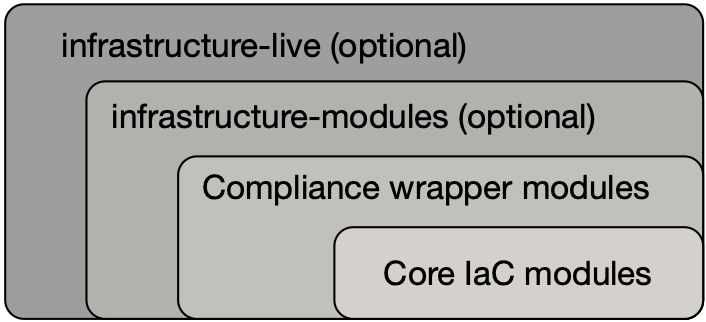
Let’s unpack this a bit.
Core modules
Core modules are broadly applicable and can be used with or without compliance requirements. For example,
the iam-groups
core module creates a best practices set of IAM groups. The groups are configurable according to your needs.
You could, for example, choose to create a group with read-only access, another group with full administrator
access, and no other groups. All Gruntwork subscribers have access to the core modules, which reside in
Gruntwork’s infrastructure as code repositories.
Compliance wrapper modules
The compliance wrapper modules are an extension of the IaC Library. They use the
source argument in a Terraform module block to invoke
the core module with a configuration that is customized for compliance with the CIS AWS Foundations Benchmark.
These modules are in the terraform-aws-cis-service-catalog
repository (accessible to Gruntwork Compliance subscribers).
infrastructure-modules
The infrastructure-modules are your organization’s "blueprint" for how to deploy infrastructure. You can
use infrastructure-modules to customize the settings according to the needs of your environment. Subscribers
can refer to the
canonical ACME infrastructure-modules
repository for an example of how you might use infrastructure-modules.
If you’re using Terragrunt, the infrastructure-modules are optional; you can call the compliance
wrapper modules directly as the source from a Terragrunt configuration. The benefit of this is that you have less code to maintain by depending directly on Gruntwork’s upstream compliance modules.
infrastructure-live
infrastructure-live uses Terragrunt to make it easier to
work with Terraform modules in multiple environments. infrastructure-live is optional - you can use all of the modules
with or without Terragrunt.
If you’re not using Terragrunt, you can use infrastructure-modules to call the compliance
wrapper modules. Refer to the canonical ACME
infrastructure-live repository, and in particular the
Infrastructure
walkthrough for comprehensive documentation on how infrastructure-live, infrastructure-modules, and the core IaC
modules interact.
Benefits
This modular, decomposed approach allows for maximum code reuse. The core modules can be used with or without
compliance, depending on how they are configured. The compliance wrappers are like shadows of the core
modules; they pass through most of the variables to the core modules without alteration, but hard code any
settings needed for compliance. When you call the compliance modules from your own code in
infrastructure-modules, you only need to set up any variables that are custom for your environment. Often
times the default settings are good enough.
You can use this approach on AWS account. In many cases, you’ll only need compliance for production accounts, but the
same methodology can be applied to pre-production accounts as well.
If you need to brush up on how the IaC Library works, read the How to use the Gruntwork Infrastructure as Code Library guide.
Manual steps
Start by completing the manual configurations describe above in Manual steps.
Create an IAM user password policy
After the manual steps are complete, the next step is to create an IAM user password policy using the
iam-password-policy
wrapper module. Complete this step before creating any IAM users!
Using the wrapper module
This section demonstrates how to use the CIS compliance password policy wrapper module to create a password policy. Follow this pattern for each of the wrapper modules discussed throughout this walkthrough.
Using the wrapper module with Terraform
If you’re using Terraform without Terragrunt, use this section to create a module in your infrastructure-modules repository.
infrastructure-modules
└── security
    └── iam-password-policy
        ├── main.tf
        └── variables.tf
Inside of main.tf, configure your AWS provider settings:
provider "aws" {
  region = var.aws_region
}
Now use the iam-password-policy compliance module from the Gruntwork terraform-aws-cis-service-catalog repository, making sure to
replace the <VERSION> placeholder with the latest version from the
releases page:
module "iam_password_policy" {
  # Make sure to replace <VERSION> in this URL with the latest terraform-aws-cis-service-catalog release
  source                  = "git@github.com:gruntwork-io/terraform-aws-cis-service-catalog.git//modules/iam-password-policy?ref=<VERSION>"
  minimum_password_length = var.minimum_password_length
  aws_region              = var.aws_region
}
The module parameters should be exposed as input variables in variables.tf:
variable "aws_region" {
  description = "The AWS region in which all resources will be created"
  type        = string
}

variable "minimum_password_length" {
  description = "Minimum length to require for user passwords."
  type        = number
  default     = 14
}
With the module in place, it’s time to test your code. See Manual tests for Terraform code and Automated tests for Terraform code for instructions.
Merge and release your password policy module
Once the module is working the way you want, submit a pull request, get your changes merged into the master branch,
and create a new versioned release by using a Git tag. For example, to create a v0.3.0 release:
git tag -a "v0.3.0" -m "Created iam-password-policy module"
git push --follow-tags
With the module released, you can use Terraform to create the password policy. Follow the instructions in the terraform usage example.
Using the compliance wrapper module with Terragrunt
If you’re using Terragrunt, you can use the password policy Terraform module in the CIS compliance repository from a Terragrunt configuration directly, with no need to create a Terraform module of your own! In this case, terraform-aws-cis-service-catalog is the canonical Terraform module. To do so, configure a terragrunt.hcl to invoke the module. First, create a directory for the password policy in your infrastructure-live repository:
infrastructure-live
└── <your account>
    └── _global
        └── iam-password-policy
            └── terragrunt.hcl
In the directory structure above, <your account> is a friendly name for the account you’re configuring for compliance. For example, the prod account or the security account. If this doesn’t make sense, see this post for more information on Terragrunt.
Next, create terragrunt.hcl with the following contents:
terraform {
  # Make sure to replace <VERSION> in this URL with the latest terraform-aws-cis-service-catalog release
  source = "git::ssh://git@github.com/gruntwork-io/terraform-aws-cis-service-catalog.git//modules/iam-password-policy?ref=<VERSION>"
}

# Include all settings from the root terragrunt.hcl file
include {
  path = find_in_parent_folders()
}
You can test this by simply running terragrunt apply. This will pull the iam-password-policy compliance module and apply it using the credentials you have defined in AWS_ACCESS_KEY_ID and AWS_SECRET_ACCESS_KEY. When you’re satisfied with the configuration, follow the merge process described in [merge_release_terragrunt_wrapper].
See also the terragrunt usage example.
Steps for authentication via SAML
If you’re unfamiliar with SAML authentication and identity providers, start with the federated authentication section of the Gruntwork production-grade AWS account structure guide. You may also find the AWS SAML-based Federation documentation to be helpful. Once you select an IdP, populate it with users and follow the provider’s documentation to configure SAML with AWS. If you use SAML authentication alone, with no IAM users, the account will immediately be compliant with several of the Benchmark recommendations!
Once the IdP is ready, proceed with the steps below.
- Set up IAM roles for SAML
-
Use the
saml-iam-roleswrapper module to configure a compliant-set of IAM roles and policies by following the pattern outlined in Using the wrapper module. The module creates a minimal, best practices set of of IAM roles that may be assumed from the SAML provider. Tweak thevars.tfaccording to your needs. - Enable MFA in the IdP
-
Ensure that MFA is configured for all AWS users in your IdP. Strictly speaking, MFA in the IdP is not required for compliance with the Benchmark. However, the intent of the Benchmark requirement is that all AWS users should have MFA, and we strongly advise this practice.
- Create an IAM group for access to support
-
Use the
iam-groupswrapper module to create a standardized set of IAM groups by following the pattern outlined in Using the wrapper module. The module will create a group calledsupportwith theAWSSupportAccessmanaged policy attached. Customize the variables in the module to create only the groups you want. - Use the IAM admin role for administration
-
To ensure compliance with recommendation 1.16, the
saml-iam-roleswrapper module does not create any roles with explicit administrator (*:*) permissions. Instead, to grant "effective" administrator access to a SAML user, use theallow-iam-admin-access-from-samlrole. Users that assume this role have the ability to grant, revoke, and update IAM permissions as needed. From a privileges standpoint, this is the same as full administrator access, so be judicious with this permission.
If you need to provision IAM users in addition to SAML, proceed with Steps for authentication via IAM users. Otherwise, continue with Use IAM roles for EC2 instances.
Steps for authentication via IAM users
If you’re new to IAM, refer to the Core concepts section of the production-grade AWS account structure guide. Once you’re familiar with IAM, proceed with the following configuration steps:
- Create cross-account roles
-
If you’re using multiple AWS accounts, the best way to set up access to each account is to create a set of roles that can be assumed from a central account using the AssumeRole feature. This way you only need to create IAM users in the central account rather than in each account individually . You can create roles in your sub accounts using the
cross-account-iam-roleswrapper module and the pattern outlined in Using the wrapper module.
Refer to the IAM roles section of the production-grade AWS account structure guide to learn more about cross-account roles.
- Create IAM groups
-
Next, create a compliant set of IAM groups with the
iam-groupswrapper module by following the pattern outlined in Using the wrapper module. If you’re using multiple AWS accounts, add the roles created in the previous step to theiam_groups_for_cross_account_accesslist. - Create IAM users
-
Now use the
iam-userscore module to create users and add them to the groups created in the previous step. Follow the pattern outlined in Using the wrapper module to use theiam-usersmodule, even though there isn’t a wrapper module foriam-usersbecause there isn’t anything particular needed to reach compliance.
If you are using multiple AWS accounts, create users in a central AWS account that you wish to use for authentication. For example, you might use a "security" account for authentication, and use the previously created cross-account roles and associated IAM groups to enable users to use AssumeRole to access other accounts (e.g. dev, stage, and production) where your applications run.
- (Optional) Create custom IAM groups or roles
-
If you need to create customized IAM groups and/or roles, use the
custom-iam-entitywrapper module. You can use this module to attach managed policies to roles and groups, and to require that MFA is in use. Refer to the example usage.
Use IAM roles for EC2 instances
All Gruntwork modules that require AWS API access use roles rather than an IAM user with static API credentials for authentication. For example:
-
terraform-aws-serveris used to manage a single EC2 instance with an IAM role attached. -
terraform-aws-asgapplies IAM roles to instances in auto-scaling group. -
terraform-aws-eksuses IAM roles for EKS cluster workers. -
ecs-clustercreates IAM roles for ECS instances -
lambdacreates IAM roles for Lambda functions
Use these modules whenever possible. You should always use IAM roles in your own modules any time you need to provide access to the AWS API. Using static API credentials should be avoided whenever possible.
Automatically remove expired SSL/TLS certificates from IAM
Next, use the cleanup-expired-certs
module to deploy a Lambda function to remove all expired SSL/TLS certificates from AWS IAM. This module will add all of the relevant IAM resources needed to
periodically execute the Lambda function and optionally, report metrics to CloudWatch. Be sure to deploy this module into each of your AWS accounts.
If you’re using Terragrunt, then you can invoke the standalone module directly by following the pattern outlined in
Using the compliance wrapper module with Terragrunt and creating a terragrunt.hcl file with the following contents:
terraform {
  # Make sure to replace <VERSION> in this URL with the latest terraform-aws-cis-service-catalog release
  source = "git::ssh://git@github.com/gruntwork-io/terraform-aws-cis-service-catalog.git//modules/cleanup-expired-certs?ref=<VERSION>"
}

# Include all settings from the root terragrunt.hcl file
include {
  path = find_in_parent_folders()
}

inputs = {
  schedule_expression                = "rate(1 hour)"
  report_cloudwatch_metric           = true
  report_cloudwatch_metric_namespace = "custom/cis"
  report_cloudwatch_metric_name      = "cleanup-expired-iam-certs-count"
}
Steps to enable IAM Access Analyzer for all enabled AWS regions
To enable IAM Access Analyzer in your AWS Account or Organization, you need to do it separately for every region.
If you’re using Terragrunt, then you can invoke the standalone module directly by following the pattern outlined in
Using the compliance wrapper module with Terragrunt and using a terragrunt.hcl file with the following contents:
terraform {
# Make sure to replace <VERSION> in this URL with the latest terraform-aws-security release
source = "git::ssh://git@github.com/gruntwork-io/terraform-aws-security.git//modules/iam-access-analyzer-multi-region?ref=<VERSION>"
}

# Include all settings from the root terragrunt.hcl file
include {
  path = find_in_parent_folders()
}

inputs = {
  iam_access_analyzer_type = "ACCOUNT"
  iam_access_analyzer_name = "iam-access-analyzer"
  seed_region              = "us-east-2"
}
And refer to the Readme document here: README.adoc.
Maintaining compliance by following IAM best practices
We conclude the IAM section with a few parting words of wisdom for maintaining compliance over time:
-
Do not attach any policies without requiring MFA.
-
Never use the
AdministratorAccessAWS managed policy with any users, groups, or roles. -
Refrain from granting inline permissions or attaching managed policies directly to IAM users. Permissions should be granted exclusively via IAM groups and roles.
-
Never use static IAM user access keys to allow an application to access AWS, whether that application is hosted on an EC2 instance or anywhere else!
-
Avoid logging in as the root user. Unfortunately, there is nothing built-in to AWS to prevent use of the root user. It cannot be locked or removed from the account. In fact, there are several tasks that require the use of root. Fortunately, most of these activities are rare, so usage of the root account can be kept to a minimum.
Configure storage
S3 Buckets
To make sure your S3 buckets are compliant with the benchmark, use the
private-s3-bucket module
to create and manage all of your S3 buckets. This module blocks public access and enforces encryption by default. Note
that all Gruntwork modules that create S3 buckets use this module under the hood.
You can either use the private-s3-bucket module in your own modules, or, if you wish to deploy a standalone S3 bucket, use the s3-bucket service
from the Gruntwork Service Catalog.
Encrypt EBS volumes
Use the ebs-encryption-multi-region module
to configure AWS EBS encryption in all enabled regions of an AWS Account, as per the Benchmark recommendation.
If you’re using Terragrunt, then you can invoke the standalone module directly by following the pattern outlined in
Using the compliance wrapper module with Terragrunt and creating a terragrunt.hcl file with the following contents:
terraform {
  # Make sure to replace <VERSION> in this URL with the latest terraform-aws-security release
  source = "git::ssh://git@github.com/gruntwork-io/terraform-aws-security.git//modules/ebs-encryption-multi-region?ref=<VERSION>"
}

# Include all settings from the root terragrunt.hcl file
include {
  path = find_in_parent_folders()
}

inputs = {
  enable_encryption = true
  seed_region       = "us-east-2"
}
Configure logging
The logging section of the Benchmark includes configurations for CloudTrail, AWS Config, KMS keys, and VPC flow logs.
CloudTrail
Use the cloudtrail
wrapper module to establish a compliant CloudTrail configuration. The wrapper module will configure CloudTrail with all
the characteristics required by the Benchmark. Refer to the
terraform
and
terragrunt
examples.
Enable AWS Config in all regions
Use the
aws-config-multi-region
module
to enable AWS Config in every region of an AWS account, along with a global configuration recorder in one region, as per
the Benchmark recommendation.
Enable key rotation for KMS keys
Use the
kms-master-key
module to create KMS keys with key rotation enabled by default.
Create VPC flow logs
The Benchmark recommends enabling VPC Flow Logs
for all VPCs in all regions. You can use the
vpc service
in the CIS Service Catalog to create your VPCs. This service is configured for CIS compliance, and as such has VPC flow
logs enabled. For example, you might create a VPC using the VPC service:
module "vpc" {
  # Replace <VERSION> with the most recent release from https://github.com/gruntwork-io/terraform-aws-cis-service-catalog/releases
  source = "git::git@github.com:gruntwork-io/terraform-aws-cis-service-catalog.git//modules/networking/vpc?ref=<VERSION>"

  vpc_name                                                = var.vpc_name
  aws_region                                              = var.aws_region
  cidr_block                                              = var.cidr_block
  num_nat_gateways                                        = var.num_nat_gateways
  allow_administrative_remote_access_cidrs_public_subnets = var.allow_administrative_remote_access_cidrs_public_subnets
}
Under the hood, the service will enable VPC flow logs. All that’s remaining is to define the parameters in a variables.tf:
variable "aws_region" {
  description = "The AWS region to deploy to (e.g. us-east-1)"
  type        = string
}

variable "vpc_name" {
  description = "The name of the VPC to create"
  type        = string
}

variable "cidr_block" {
  description = "The IP address range of the app VPC in CIDR notation."
  type        = string
}

variable "num_nat_gateways" {
  description = "The number of NAT Gateways to launch for this VPC."
  type        = number
}

variable "allow_administrative_remote_access_cidrs_public_subnets" {
  description = "A map of CIDR blocks that will be allowed access to administrative ports (e.g., SSH, RDP) in the public subnet tier."
  type        = map(string)

  # Example:
  #
  #   default = {
  #    UsOffice = "1.2.3.4/32"
  #    EuOffice = "5.6.7.8/32"
  # }
}
Refer to the VPC example code.
To limit the number of flow logs, you may want to use the
cloud-nuke defaults-aws command. It will remove the default VPC from
all regions in an account, saving you the hassle of creating flow logs in each default VPC.
Configure monitoring
The Monitoring section of the Benchmark centers on a collection of
CloudWatch Logs Metric
Filters. Gruntwork has simplified this section to a single module: the
cloudwatch-logs-metric
-filters
wrapper module. It will create and configure all the CloudWatch Logs metric filters necessary for
compliance with the Benchmark. Note that when you use the
cloudtrail
wrapper module as recommended in CloudTrail, this module will automatically be invoked inline so that you don’t
have to do anything special to enable the metric filters on the deployed CloudTrail configuration.
Note that you must have a subscriber on the SNS topic to be compliant. Refer to Subscribe to SNS topic for details on how to setup a subscriber to the SNS topics that are created.
Configure networking
To ensure all the networking recommendations are satisfied, use the
vpc (and/or
vpc-mgmt)
service from Gruntwork’s CIS Service Catalog to create all your VPCs. These services are specifically configured for
CIS compliance, and as such they don’t allow security groups to access ports 22 or 3389 from the world. In addition,
our architecture has a least-privileges-based routing configuration by default.
To meet the 5.1 recommendation, you’ll need to provide values for the allow_administrative_remote_access_* variables
when creating VPCs. These variables are used to create appropriate Network ACL Rules. For example, you might create a
VPC using the vpc service from terraform-aws-cis-service-catalog:
infrastructure-modules
└── networking
    └── vpc
        └── myvpc
            ├── main.tf
            └── variables.tf
module "vpc" {
  # Replace <VERSION> with the most recent release from the https://github.com/gruntwork-io/terraform-aws-cis-service-catalog/releases:
  source = "git::git@github.com:gruntwork-io/terraform-aws-cis-service-catalog.git//modules/networking/vpc?ref=<VERSION>"

  # Set the basic required variables first
  vpc_name         = var.vpc_name
  aws_region       = var.aws_region
  cidr_block       = var.cidr_block
  num_nat_gateways = var.num_nat_gateways

  # Next, pass values for the allow_administrative_remote_access_* variables, thus creating the NACL rules under the hood
  allow_administrative_remote_access_cidrs_public_subnets              = var.allow_administrative_remote_access_cidrs
  allow_administrative_remote_access_cidrs_private_app_subnets         = { all_app_vpc_cidrs  = module.vpc.vpc_cidr_block }
  allow_administrative_remote_access_cidrs_private_persistence_subnets = { all_app_vpc_cidrs  = module.vpc.vpc_cidr_block }
Refer to the cis-infrastructure-modules-acme and cis-infrastructure-live-acme, if you are using Terragrunt.
Finally, run the cloud-nuke
defaults-aws command to remove all default security groups from all VPCs in all regions.
Next steps
Congratulations! If you’ve made it this far, you should have achieved compliance with the CIS AWS Foundations
Benchmark. Now it’s time to confirm that your configurations are correct and you didn’t miss any steps.
Use the
aws-securityhub
module
to enable AWS Security Hub in every region of an AWS account to check your
account for compliance with the
AWS CIS Foundations Benchmark. The Security Hub runs the exact audit steps specified in the Benchmark using AWS Config
managed rules. By enabling the Security Hub, you can track your compliance efforts and be notified if any
recommendations have not been implemented.
Traceability matrix
Use the table below as a quick reference to map the CIS AWS Foundations Benchmark recommendations to the sections above.
# |
Section |
Description |
1.1 |
Complete the contact details on the AWS account page |
|
1.2 |
Complete the security contact information on the AWS account page |
|
1.3 |
Answer the security questions on the AWS account page |
|
1.4 |
Use the Gruntwork Security Hub module to enable AWS Security Hub to ensure that no access key exists for the root user |
|
1.5 |
Manually configure MFA for the root user |
|
1.6 |
Use a Yubikey (or other hardware MFA) for the root user |
|
1.7 |
Take manual steps to complete this recommendation |
|
1.8-9 |
Use the IAM password policy module |
|
1.10 |
Configure authentication using SAML or IAM |
|
1.11 |
Create IAM users with the |
|
1.12 |
Use the Gruntwork Security Hub module to enable AWS Security Hub to ensure that there are no unused credentials |
|
1.13 |
Use the Gruntwork Security Hub module to enable AWS Security Hub to ensure that there are no extra access keys |
|
1.14 |
Use the Gruntwork Security Hub module to enable AWS Security Hub to ensure that there are no unused access keys |
|
1.15 |
Use IAM groups |
|
1.16 |
Use the Gruntwork modules to create best-practices groups and roles |
|
1.17 |
Use the |
|
1.18 |
Use Gruntwork modules to ensure EC2 instances use roles for access |
|
1.19 |
Use Gruntwork modules to automatically remove expired certificates from IAM |
|
1.20 |
Use the |
|
1.21 |
Use Gruntwork modules to enable IAM Access Analyzer across regions |
|
1.22 |
Use the security AWS account as described in the Gruntwork production-grade AWS account structure |
|
2.1.1-2.1.2 |
Use the |
|
2.2.1 |
Use Gruntwork modules to configure AWS EBS encryption |
|
3.1-3.4 |
Use the Gruntwork CloudTrail wrapper module |
|
3.5 |
Enable AWS Config for all regions |
|
3.6-3.7 |
Use the Gruntwork CloudTrail wrapper module |
|
3.8 |
Use the KMS module |
|
3.9 |
Use the Gruntwork CIS-compliant |
|
3.10-3.11 |
Use the Gruntwork CloudTrail wrapper module |
|
4.1-4.15 |
The CloudWatch Logs metrics filters wrapper module will satisfy each recommendation |
|
5.1 |
Use the Gruntwork CIS-compliant |
|
5.2 |
Use the Gruntwork CIS-compliant |
|
5.3 |
Use the |
|
5.4 |
Use the Gruntwork CIS-compliant |

Comments